
Traduzione autorizzata tratta dal post originale di Tom Kuhlmann sul “Rapid E-Learning Blog”. Il post originale è disponibile qui
Con tutte le domande che ricevo su PowerPoint, è una buona cosa che nel corso dell’anno passato, la e-learning community ha creato circa 300 tutorial PowerPoint. Per questo post, ho deciso di metterne insieme un bel po’ in modo che tu possa averli tutti in un’unica lista
Per celebrare le festività e un grande 2010, ho anche incluso un template gratuito realizzato in PowerPoint per l’e-learning!
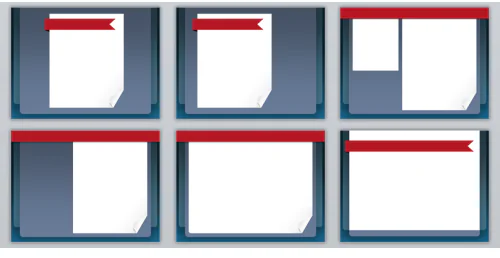
Clicca per scaricare il template PowerPoint gratuito100+ tutorial di PowerPoint
Se volete saperne di più su come utilizzare PowerPoint o sulla costruzione di corsi in rapid eLearning, questa lista è un buon punto di partenza. Anche se non hai necessità di utilizzare uno specifico tutorial proprio adesso, guardarlo è un buon modo per conoscere PowerPoint. La chiave è fare di più che semplicemente guardare il tutorial. Invece, metti in pratica ciò che hai imparato e quindi tenta di applicarlo ad un progetto reale.
Ho organizzato i tutorial per argomento, in modo da renderli un po' più facili da individuare.
PowerPoint per il Rapid E-Learning
- Create interactive animated scenarios.
- Create a click and zoom effect to view images.
- Create a pan & zoom effect for your elearning scenarios.
- Working with hyperlinks in PowerPoint-based elearning.
- Create interactive scenarios in PowerPoint.
- Snapshot focus effect.
- Animated text effect to highlight key words.
- Animated effect to introduce new scenes or information.
- Lighting effects from the award winning guru course.
- Create a lightbox effect.
- Re-use animations to save time in your course design.
- Continuous animation effect for elearning.
- Why it’s a good idea to create hyperlink shapes in PowerPoint elearning courses.
- Production tip: how to view in slide show and edit the slide at the same time.
- Hide and reveal background fill and an alternative example using Tagxedo.
- Create custom email links for your elearning course.
Suggerimenti per fare grafica con PowerPoint
- Use PowerPoint as an image editor.
- Tips on manipulating images in PowerPoint.
- Use hidden slides as a working canvas.
- How to create custom drop shadows.
- Easily extend a photo’s background.
- Get more out of the free images you get from Microsoft Office.
- Get more mileage out of your PowerPoint clip art.
- Two tutorials on creating depth and perspective: tutorial 1 and tutorial 2…and a bonus tutorial while we’re at it.
- Create 3D perspective using the rotation feature.
- Simulate a pop-up light box effect.
- Create a faded image.
- Use gradients to control focus on the screen.
- Creating a faded background to frame your content.
- Removing backgrounds using shape fills.
- Make text stand out by filling it with an image.
- Masking and composition effect.
- Create a spotlight effect.
- Advertising effect for visual foreshadowing.
- Visual surprise and slicing image effects in PowerPoint.
- Add contrast to characters to make them stand out.
- How to remove the background in PowerPoint 2007.
- Remove background images using shapes and clipboard fills.
- Using fill effects to enhance free notebook template.
- Graphic design tip using cropping and soft edges.
- Use gradient fills to create areas of focus.
- Use background fill effect to create see though image.
- Create an animated social media-inspired menu in PowerPoint
- Use the freehand drawing tool to trace images for custom clip art.
- Modify clip art to create custom characters for elearning.
- What to do if the ungroup clip art feature doesn’t work for you.
- Ungroup clip art and apply image filters.
Creare illustrazioni e oggetti in PowerPoint
- Create a TV monitor.
- Create a flat screen LCD panel.
- Create a TV style frame.
- Create an iPhone or iPad graphic.
- Create an iPhone scrolling effect in PowerPoint.
- Create the front and back of an iPad; and then build the interface one and two.
- Glassy marble effect in PowerPoint
- Create an envelope graphic.
- Building a briefcase in PowerPoint
- Easy photo corners to hold images.
- Make images look like they’re magazine cutouts.
- Create transparent tape objects.
- Polaroid page curl effect
- Page curl sticker images.
- Create a stack of paper.
- Create a push-pin graphic.
- Create a calendar graphic.
- Create index card graphics.
- Create a South Park style character.
- Create a magnifying glass.
- 3D spotlight effect to go with the magnifying glass.
- Use Wordle to create silhouette graphic fills. Wordle site
- Create a whiteboard graphic.
- Create a chalkboard graphic.
- Create a picture frame. And then create funky picture frames and more funky picture frames.
- Create a torn image effect and an alternative approach.
- Customize clip art in PowerPoint.
- Tips while working with custom clip art.
- Simple way to create silhouette characters.
- Create advanced text graphic effect.
- Create folders to use in your elearning course.
Trucchi per le animazioni in PowerPoint
- Three ways to animate in PowerPoint.
- How to create a pivot animation.
- Create re-usable animated hands for elearning.
- Zoom effect in PowerPoint.
- Grow and shrink for animation effects
- Animating a clip art character’s head.
- Create rolling screen credits.
- Create a game show spinner.
- Animated domino effect.
- Animate your custom clip art.
- Create an Etch-a-Sketch animation.
- Polishing animation to bring content into focus.
- Create an animated table one row at a time.
- Combine animations in PowerPoint with an alternative version.
- Animated hands applied to a folder theme design.
Tutorial su come usare PowerPoint
- How to move objects on a slide.
- How to quickly swap images in PowerPoint.
- Here’s the difference between PNG and EMF images.
- How to generate random text in PowerPoint.
- How to save as a PowerPoint template.
- How to reduce file size by saving slide as a PNG.
- Duplicate objects with CTRL + drag.
- Animate with motion paths.
- Basic animation tips.
- Working with the slide master.
- Create custom image and clip art collections.
- How to minimize the ribbon.
- How to use the format painter.
- Create a transparent background.
- Edit points in PowerPoint shapes.
- How to compress images in PowerPoint.
- How to use selection pane to manage layers in PowerPoint.
- How to embed fonts in PowerPoint.
- Use slide masters to apply universal image effects.
- Understanding accent colors in PowerPoint 2007+.
- How to use the slide background fill feature.
- Controlling layers with the selection pane in PowerPoint 2007.
- Add hyperlinks to PowerPoint slide masters.
- Customize the quick access toolbar in PowerPoint 2007+.
- How to fill shapes with images.
- Use the ruler to adjusting spacing on numbered text.
- Using masters to customize the screen layout.
- Tour of Microsoft Online and how to find images.
Risorse PowerPoint
- PowerPoint-related posts on the Rapid E-Learning Blog
- Free motion path tool for PowerPoint and how to use it.
- Free Color Swatch Add-in for PowerPoint and how to use it.
- Free Pattern Fill Tool for PowerPoint 2007.
- PowerPoint MVPs list.
- Official Microsoft PowerPoint help.
- PowerPoint Heaven (for cool PowerPoint ideas and uses)
- PowerPoint tutorials tracked by the Articulate community team.
Persone da seguire su Screenr
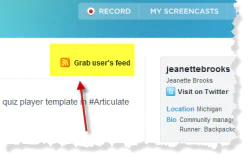
Ci sono molte persone su Screenr che creano utili PowerPoint e tutorial sul rapid elearning. Ecco un elenco di alcuni di quelli che seguo. È possibile utilizzare il feed RSS sulla loro pagina per seguirli con un lettore di feed, in modo che tu possa essere sempre aggiornato su ciò che fanno.
Un'altra idea è quella di utilizzare un servizio come Diigo per aggiungere ai segnalibri i tutorial che preferisci. In questo modo saranno davvero facili da trovare.
- @jeanettebrooks
- @elearning
- @articulatedf
- @slhice
- @LindaLor
- @italgo
- @evolve4success
- @RonPrice
- @joe_deegan
- @hamtra
- @LearnNuggets
- @EndersDesign
- @BrianHoule
- @BrucUK
- @tomkuhlmann
- @learningppt
Come puoi vedere, ci sono un sacco di tutorial gratuiti e risorse per aiutarti a saperne di più su PowerPoint. Tutto ciò che ti serve è un po' di pratica e sarai un PowerPoint pro in pochissimo tempo.
Spero che tu abbia un felice anno nuovo!